IST 628 EAD Assignment - Setup
Below are instructions for downloading and testing the files you will need to complete your assignment.
Additional resources are available in this list of useful links for additional resources.
Important notes
DO NOT wait until the night before the assignment is due to begin working on this, in case you have problems with it.
If you need help, please email me at mrrothen@syr.edu or call me at 315-443-2081 and I will be happy to work with you.
DO look at lots of examples (refer to this list of useful links) before you start working on your finding aid, and if you encounter
problems look at the examples to help you figure out how to fix it.
DO NOT post your completed assignment to Blackboard. When you are done, email your final EAD file to me at mrrothen@syr.edu.
Your finding aid will be graded on both encoding (does it validate, have you included required elements, etc.) and content (have you put the correct content into the correct elements).
Downloading files for your EAD description of your collection
READ THIS ==> First, a note about browsers. Different browsers have different capabilities and security settings.
Microsoft Edge will NOT work for this assigment. Internet Explorer and Chrome SHOULD work.
Firefox may or may not; it depends on what version you have.
If you want to use Safari, you may have to adjust a couple of settings; see
this article for instructions.
- Create a new folder on your desktop called "ead_assignment" or similar.
- Save the following three files to that folder (right-click [Windows] or Apple key [Mac], choose "Save link as" or "Download").
- NOTE: For some reason, some operating systems may try to change the file extension (the last three letters) of some of the files during the download. In this example you can see I have tried to save the file "eadcbs6-su1.xsl" but the system has changed it to ".xml"

So when you are saving, please look carefully at the "File name" box showing the name the file is being saved as, and make sure that those last three letters match what is listed below. If they do not, change the last three letters in the "File name" box before you click "save," so that it saves it to your computer with the correct name.
- EAD template: aaa_template.xml
- EAD stylesheet: eadcbs6-su1_full.xsl
- EAD stylesheet, printer-friendly version: eadprint-su.xsl
- To TEST that you have downloaded the files and that they function correctly:
- Open your web browser and go to this test page (will open in a new window).
- Next to "XML Source File" click "Browse" and select the file "aaa_template.xml" that you just downloaded.
- Next to "XSLT style sheet" click "Browse" and select the file "eadcbs6-su1_full.xsl" that you just downloaded above.
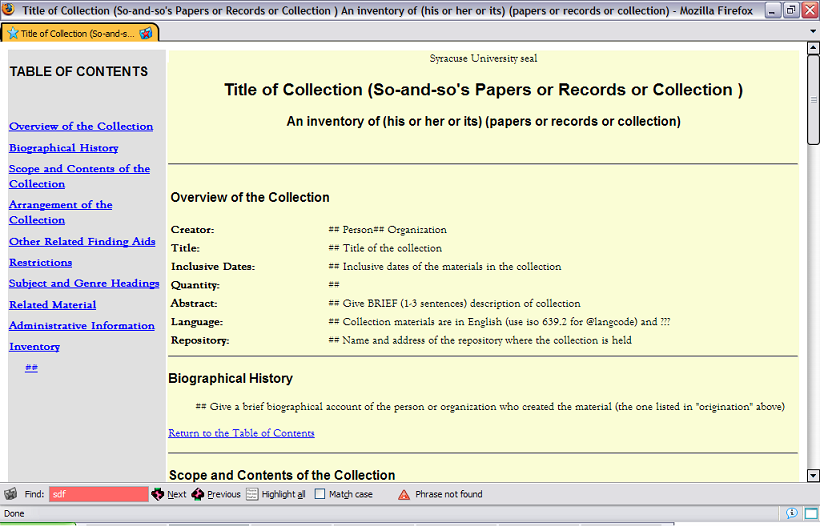
- Click "Run XSLT." The file should look like the image below. If it doesn't, please contact me as soon as possible so we can determine what the problem is.
- If you want to try a different style sheet, reload the page and again select aaa_template.xml as the XML file, but for the XSLT style sheet choose the other xsl file you downloaded, eadprint-su.xsl. Then click "Run XSLT" and see what happens!
- Follow the instructions given in the Assignment Step by Step document to complete the assignment.